

From the Reservations section, click on [+ Add reservation]

Select the dates and choose the type of operation you would like to carry out:
📌 Normal - a regular manual reservation
📌 Option - an offer with expiry date that decreases availability
📌 Quote - a limited-time offer that does not decrease availability until it is confirmed

Once you select the rate of your interest, in the following page you will choose an expiry date 📆 you can activate the possibility for the customer to change the rate from the page of the quote, and choose the email template to be sent.

⚠️ The email can be customized if you have the WebConcierge package active in your subscription, to create Email Templates and in order to be able to find it among the available templates when creating the offer for your customer, it will be necessary to select Proposal/Quote.

By activating the "show attachments" function (1) you will be able to send the proforma of the bill of their quote as an attachment to your guests, you can also decide whether to send them other files (2).

If you don't have the WebConcierge included, you will have a default template by the name Proposal/Quote in the Settings > Email Templates section.
---
You can also add Options/Quotes by adding the reservation through the Double-Click from the calendar:
it is possible to select the type, the expiry date of the offer, activate the option for the customer to change the rate online and choose a template.

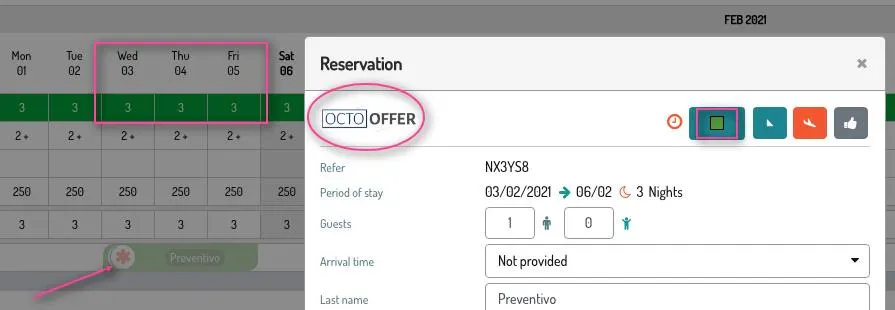
Quotes will be displayed on the calendar with a faded green colour, the asterisk Advanced Icon will represent its status *️⃣ and availability will not be decreased until the offer won't be confirmed.
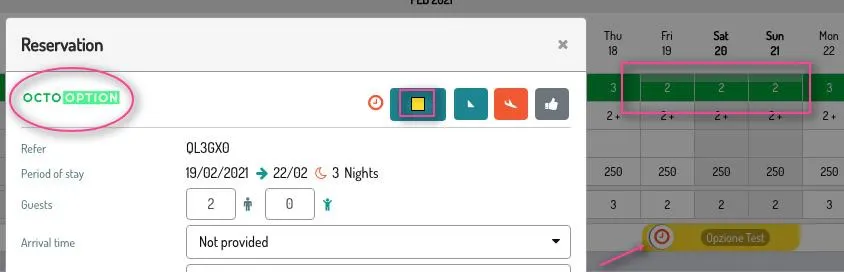
Options will appear on the Calendar in yellow, the clock
Advanced Icon will mark its Status 🕒 and availability will be decreased.
---
Once the customer gets the offer by email, they will click on the link contained in the message to confirm the reservation.

If you wish to confirm/cancel an offer manually, instead, you can access the details of the Offer, then click on the dedicated button at the bottom of the page.

---
⚠️ ATTENTION - Once the expiry date has passed, the quote will not be automatically deleted from the system. To report the presence of expired quotes / options, an alert message will appear on the Dashboard and you will have to manually proceed with its cancellation.

This will allow you to “reuse” expired quotes / options simply by moving the expiration date in the future, without having to undo any cancellations.
---
Talk to you soon!
🐙
