

Email template filters are used to decide when an automated email should be sent.
In simple terms, each filter is a condition: if it’s met, the email is sent; if not, the sending is blocked.
In this article, we focus on the “Tourist tax collected” filter, explaining it in detail, and then we’ll review the other available filters.
A filter:
is set directly inside the email template
checks a condition related to the booking or the guest
decides whether the email should be sent or not
It’s especially useful for sending messages only when they’re really needed, avoiding repetitive or out-of-context communications for the guest.
To view the filters, go to Settings > Email Templates, click [Edit] to customize an existing template or [Add New +] to create a new one.
Among the configuration options (explained in detail in the dedicated Template article), you can turn Show Filters ON ⬇️
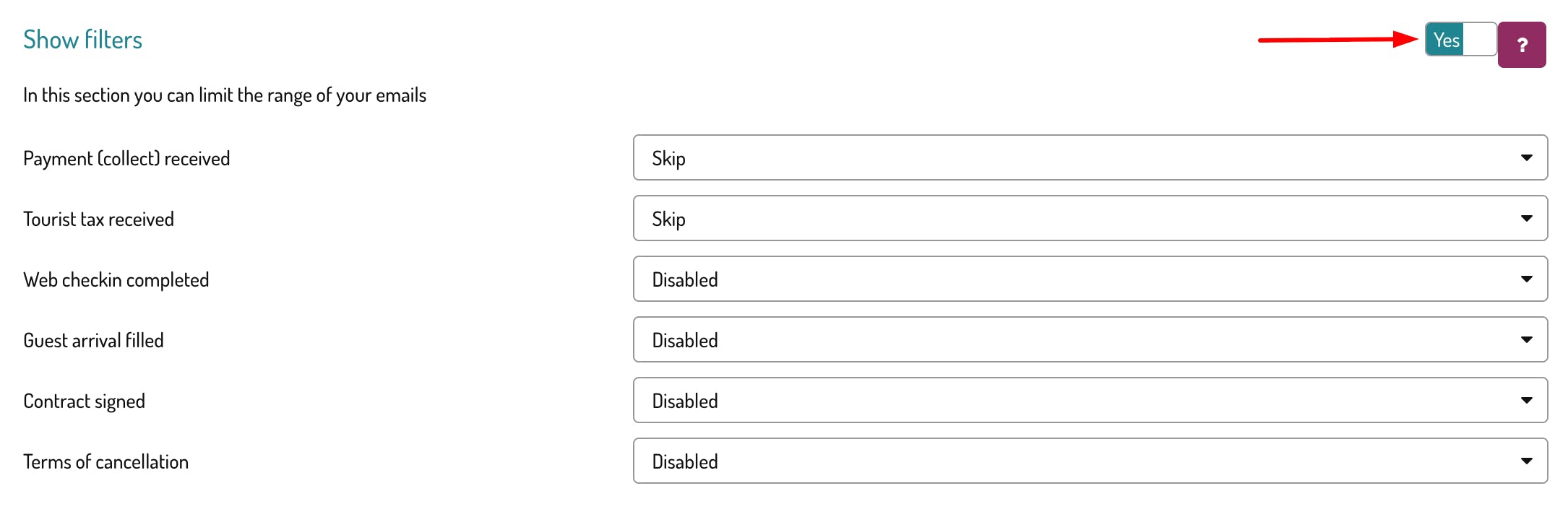
This filter checks the payment status of the tourist tax and can have three values:
1️⃣ Ignore
The system does not take the tourist tax into account.
The email will be sent regardless of whether the tax has been paid or not.
2️⃣ Collected
The template is sent only if the tourist tax has been paid.
This works only if tourist tax payment is enabled in the Web Concierge.
Some practical examples:
tourist tax payment confirmation email
thank-you message after payment
sending receipts or post-payment information
If tourist tax payment is not enabled in the Web Concierge, this condition can never be met.
👉 HERE you can find all the information on how to enable tourist tax payment in the Web Concierge.
3️⃣ Not collected
The email is sent only if the tourist tax has NOT been paid.
For example:
reminder before arrival
automatic message inviting the guest to pay online
check-in notification
Below is an overview of the other filters, with a brief explanation for each.
💳 Payment (collection) received
Checks the payment status of the booking.
Available options:
Ignore → no payment check
Partially collected → the email is sent if only a deposit has been received
Fully collected → the email is sent only if the full amount has been paid
Not received → the email is sent if no payment has been received
🧾 Online check-in completed
Checks whether the guest has completed the online check-in.
Completed → check-in completed
Not completed → check-in not completed
Disabled → the system does not take online check-in into account
⏰ Arrival time provided
Checks whether the guest has provided their arrival time among the additional information.
Provided
Not provided
Disabled
✍️ Contract signed
Checks the status of the digital contract signature. Read the dedicated article for more details!
Signed → contract signed
Not signed → contract not signed
Disabled → feature not active
📄 Cancellation policy
Checks the type of policy applied to the booking.
Disabled
Refundable
Non-refundable
For any questions or doubts, feel free to contact us.
See you soon! 🐙
