

If you have a multi-account and want to create the same email template to use for all or some of the properties in your network, you just need to create it from the Master account!
Access the Marketing > Email Templates section of the Master account, then click on [Add new +] to create a new template.
Pay attention to the Rooms section.
In this case, since we are in the Mother Account, Rooms indicate all the units present in the single son IDs (of course both, rooms and apartments).
You can choose either to activate the Template for all the rooms in all the IDs, or to select specific items👇
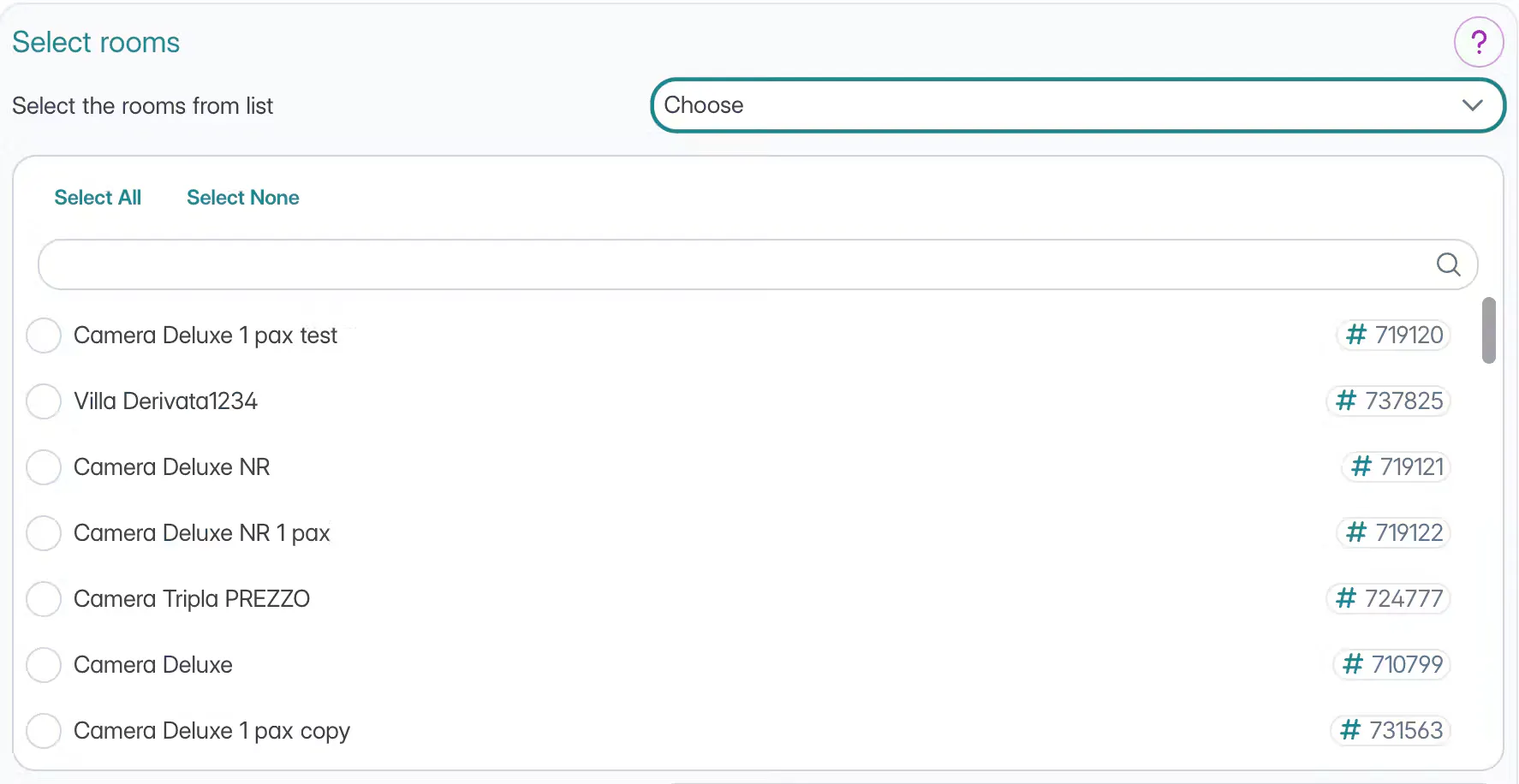
You can follow the same instructions to select the specific real rooms and rate plans, if needed.
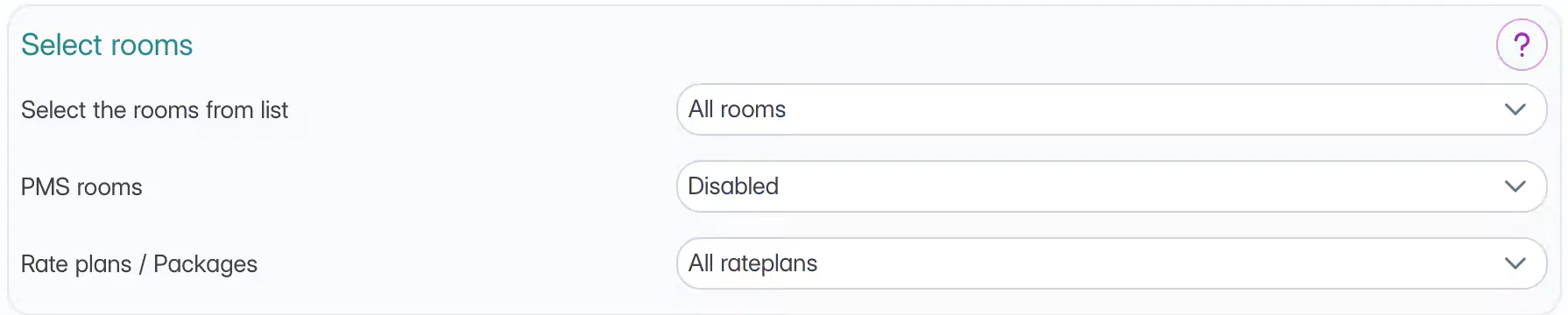
Complete the rest of the configuration according to your needs, then Save.
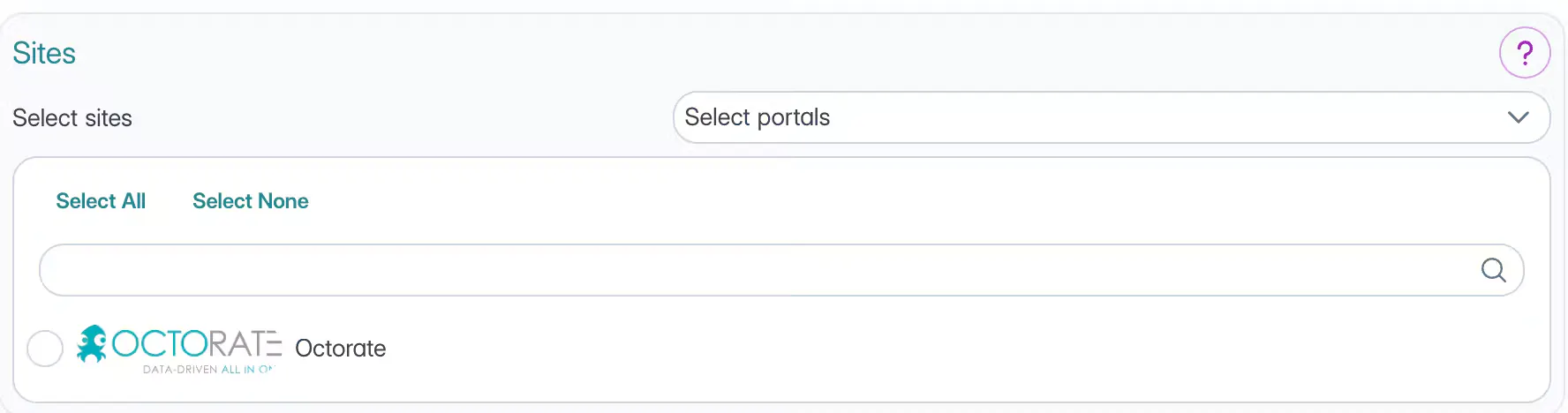
You can also select for which portals to send the templates
---
From the Master, you will be able to see the templates created here as well as those created in the individual properties. Under the template name, you will find the name of the Property

From the individual properties instead, you will also be able to see the templates created on the Master, always with the name of the Master indicated.
NB: It will not be possible to modify the master templates from the individual properties.
You can also filter the templates based on Type, Name, Status, or Property:

Should you have any doubts, please check out the general article about the Template setup.
🔺 Remember - the Template functionality belongs to the WebConcierge package!
---
Do you have any questions?
Email us at [email protected] !
---
Talk to you soon!
🐙
