

WARNING: We provide this guide to facilitate the setup of Google Analytics 4. However, we are unable to offer direct assistance in case of malfunctions or issues with the codes. For any technical problems, we invite you to contact Google support directly.
If you want to configure Google Analytics to track conversions happening inside your OTA booking engine, you can follow the steps in this article.
From the Booking Engine > OTA Booking Engine section, click Edit next to your OTA.

On this page, you will find the "Conversion Page" field, where you can insert the scripts needed to calculate the conversion rate.
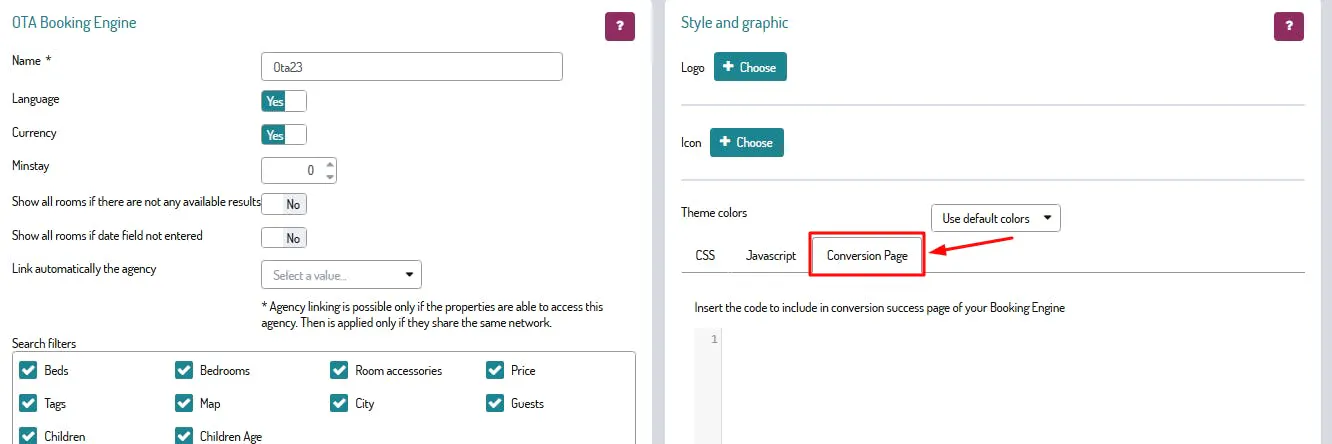
The code to insert is as follows:
<script async src="https://www.googletagmanager.com/gtag/js?id=G-XXXXXXXXX"></script>
<script>
window.dataLayer = window.dataLayer || [];
function gtag(){dataLayer.push(arguments);}
gtag('js', new Date());
gtag('config', 'G-XXXXXXXXX', { 'groups': 'GA4' }); // Google Analytics 4 property
});
</script>
👉 Remember to replace G-XXXXXXXXX with your own Google Analytics 4 ID.
Still in the Conversion Page section, you must insert a second script, separate from the previous one:
<script type="text/javascript">
gtag('event', 'purchase', {
send_to: ['G-XXXXXXXXX'],
transaction_id: octorateReservation.refer,
value: octorateReservation.total,
currency: octorateReservation.currency,
items: [{
item_id: octorateReservation.rooms[0].id,
item_name: octorateReservation.rooms[0].name,
price: octorateReservation.rooms[0].total,
quantity: octorateReservation.rooms[0].quantity
}]
});
</script>
If your event has been named something different from "purchase", you will need to replace the word "purchase" with the name of your custom event.

