


Do you need to create derived rates for your property?
Now it's possible to create multiple derived rates together in just a few simple clicks!
From your room list, click on Other actions > create derived rates

Here you can choose the types of rates to create:
Derived rates by rate plan
Derived rates by minimum stay
Derived rates by occupancy
First, you'll need to verify that all the rate plans you need are created in your ID.
Access the Create derived rates section and select Derived rate by rate plan.
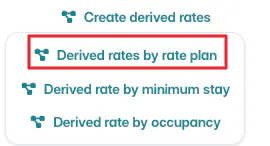
In the new window that opens, select the rooms you want to start from.
If you want to create a derived rate linked to all your main rates, you'll need to click on Select all base rooms; alternatively, you can click on the rate from which you intend to create the derivation.
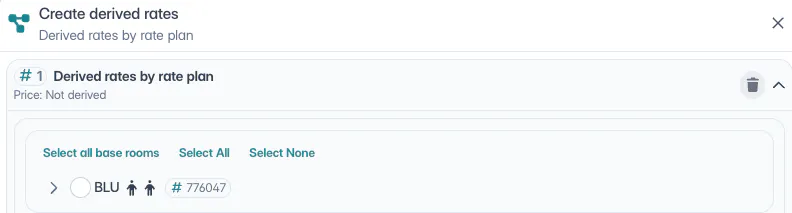
After selecting the rooms, you can set the values that will form your derived rates:
Price rule
Rate plan
Close to sales: if you want any stop sales set in the starting rate to be copied to the new derived rate.
Restrictions and minimum stay will be automatically copied from the starting rate.
If you want to create multiple different rules, you'll need to click on +Add and add a second rule.
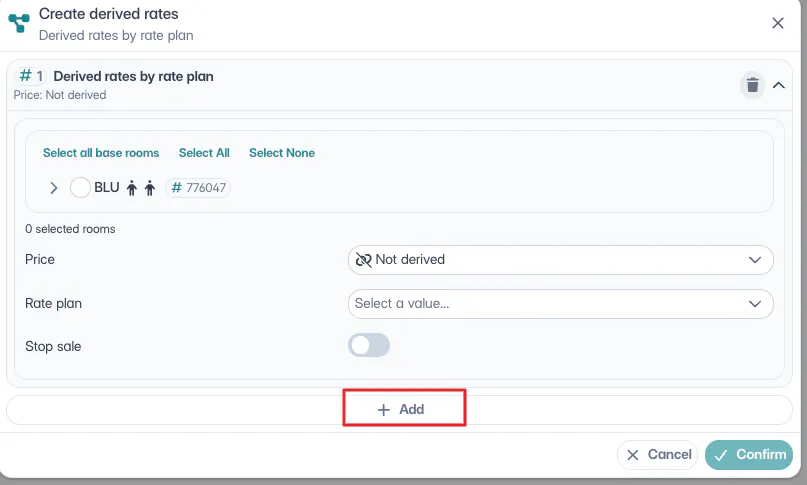
For example: I want to create a non-refundable rate; for my Double room I want to set a price difference of -10%, but for my Deluxe room I want to set a price difference of -20%. In this case, I can create two different rules.
The new derived rates that will be created will have the name of the base room + the name of the rate plan.
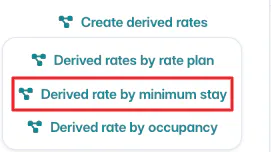
After selecting the rates you want to start from, you'll need to set the minimum stay value to apply to your new rate and the price rule to apply:
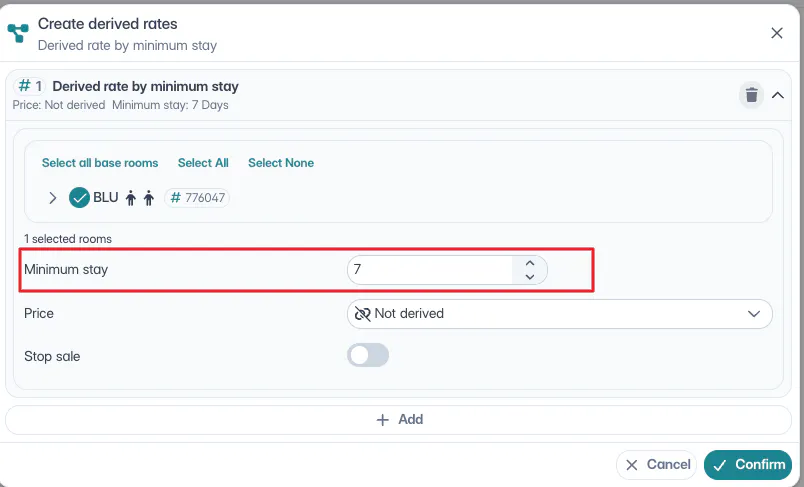
The new derived rate that will be created will have the name of the base room + the number of nights + the word DAYS
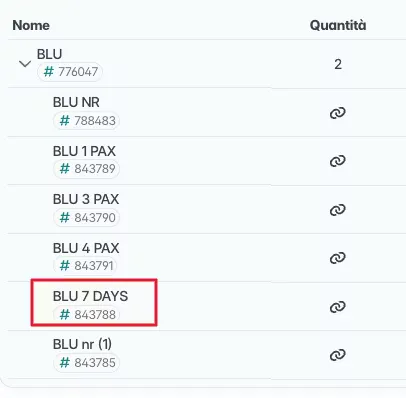
The chosen minimum stay value will be automatically applied to the calendar:

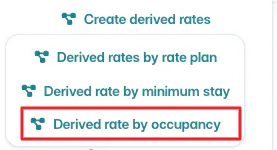
In this case too, you'll need to choose the rate to start from.
Let's imagine we have a room/apartment with a base rate for 2 people and want to create derived rates for 1, for 3, and for 4 people (which is the maximum occupancy of our unit).
After selecting the starting rate, you'll need to indicate the minimum number and maximum number of guests you expect to have for that rate (in our case from 1 to 4)
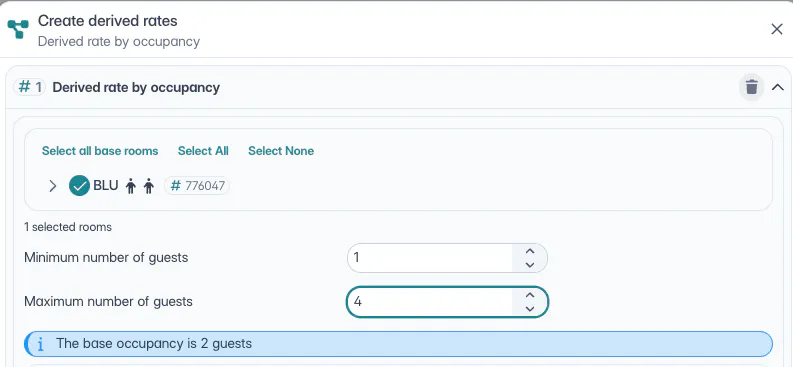
You'll then be asked to indicate the price rule for all those occupancy levels:
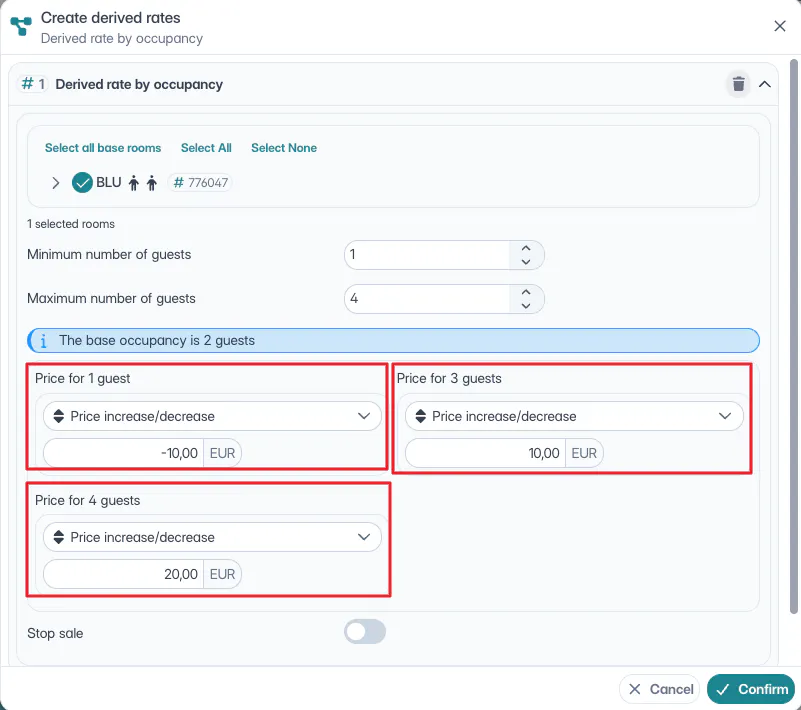
The new derived rates that will be created will have the name of the base rate + number of occupants + PAX.
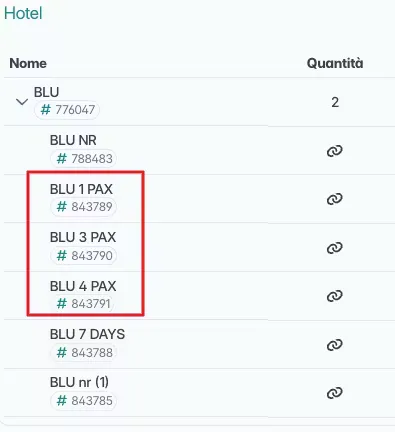
When you click confirm, you'll be shown a summary of the rates you're creating with the main characteristics.
If everything is ok, you can click Save and see your derived rates in the room list and on your calendar.
🐙
