

From the Accounting > Payment Slips section, you will see all the list of documents issued. filter them by:
Number of document
Date of issue
Property Owner
Status of Payment

Click on the dedicated button to make any modifications or on the button with the arrow, to delete or print out the document.
If you wish to create a new Payment Slip, click on [+ Add new] then.
When manually creating a payment statement, you need to fill in the following fields:
Select the reference owner for the statement.
Specify who handles the booking payments: the agency or the owner.
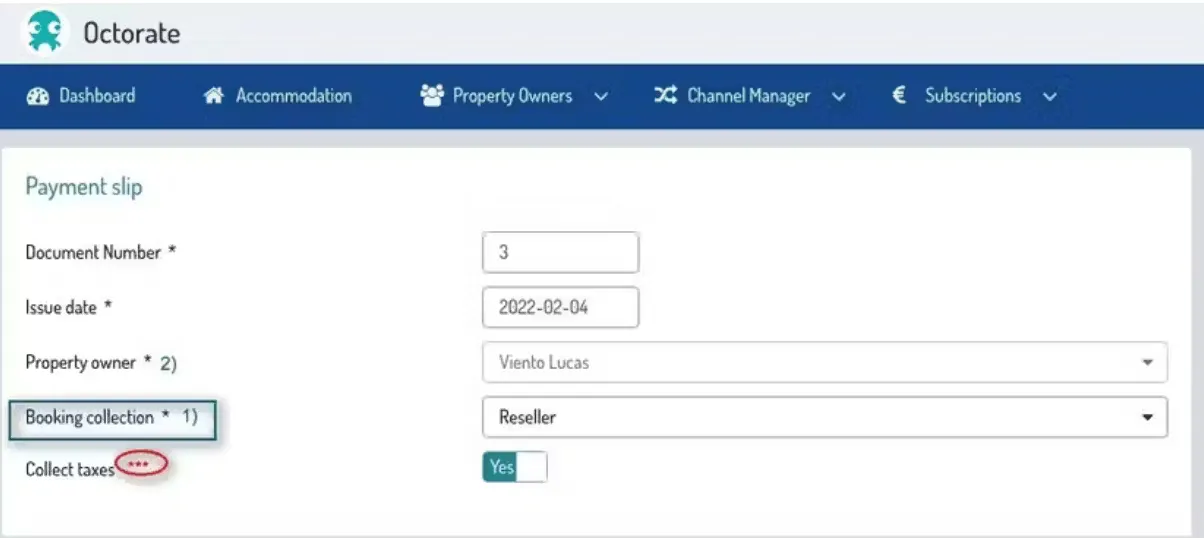

If you want to present payment statements to owners in a different currency than the one set in your account, you can enter the currency and exchange rate here.
This will be used to display the selected currency in the courtesy document. Invoices will still be issued in the currency set in your account.
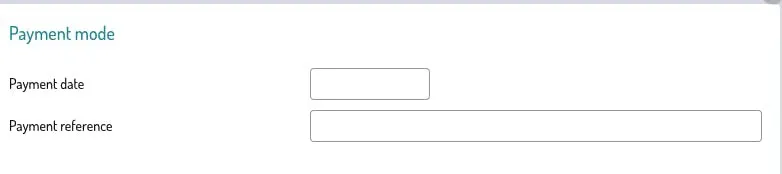
Enter the payment details.
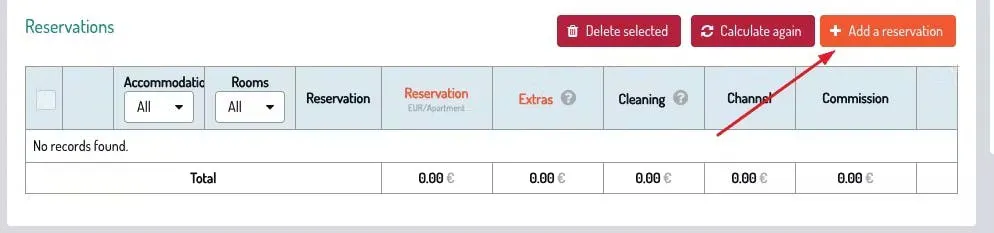
To add bookings to the statement:
Click Add a reservation
Choose whether to filter by arrival date or departure date
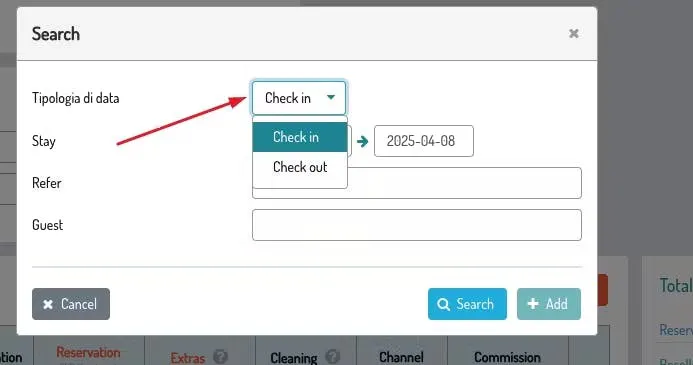
Choose whether to filter bookings by status (confirmed, cancelled, or both)
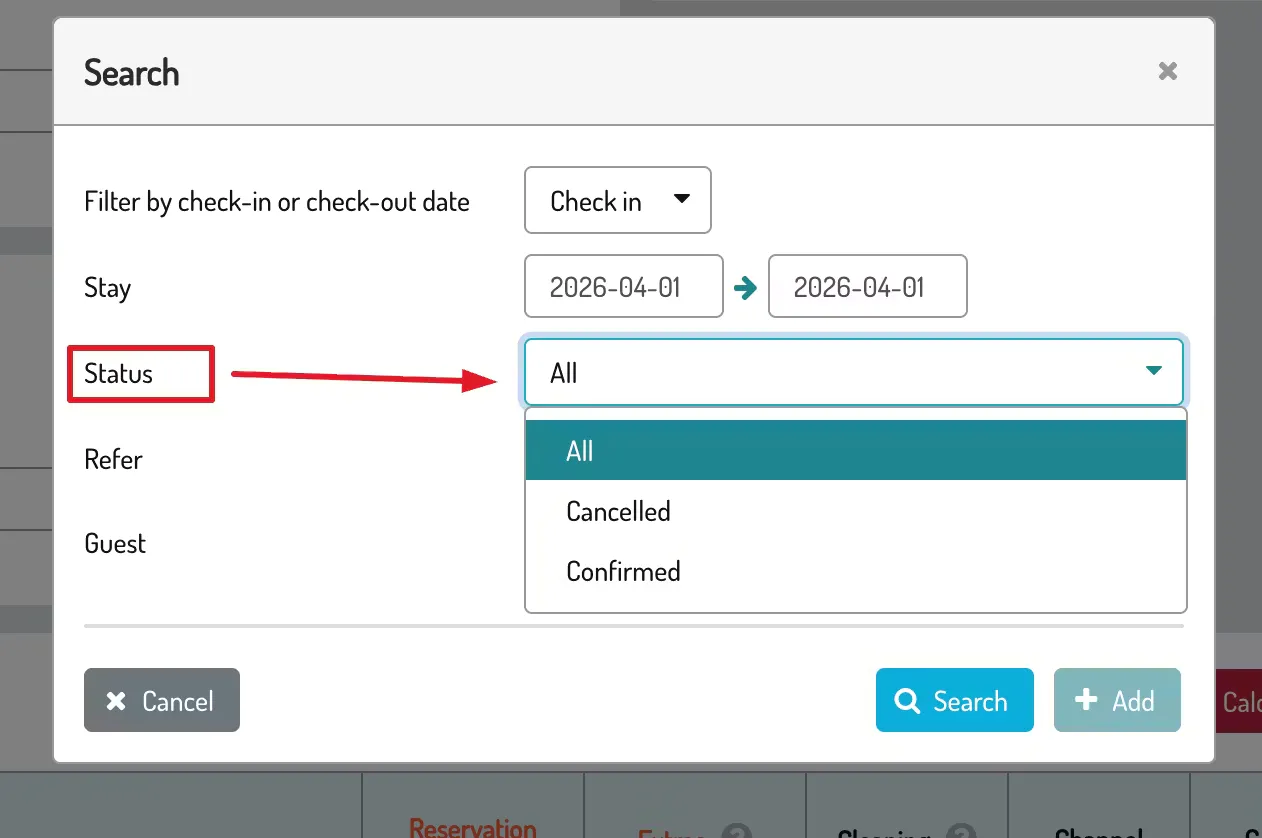
Click Search to view the list
Select the desired bookings and click Add
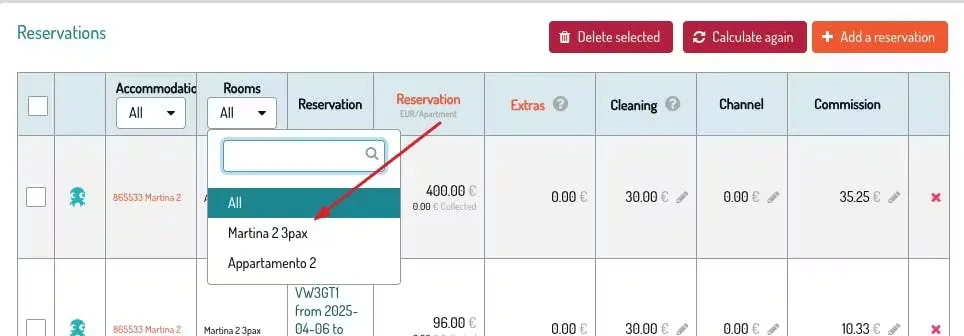
You can apply additional filters by property (ID) or room.
For cancelled bookings, the system does not consider cancellation policies. If your commission on cancellation penalties needs to be included, you must enter it manually.
The total of each booking is shown gross (VAT included) and includes all recorded payments.
Click [Add new] to include maintenance or service costs to charge to owners.
To refund costs to owners, enter the amount as negative.

This shows the breakdown based on your configuration, a useful tool for calculating withholding tax and flat tax.
By activating the tax substitute in the document, you will see VAT separated among the payment slip.
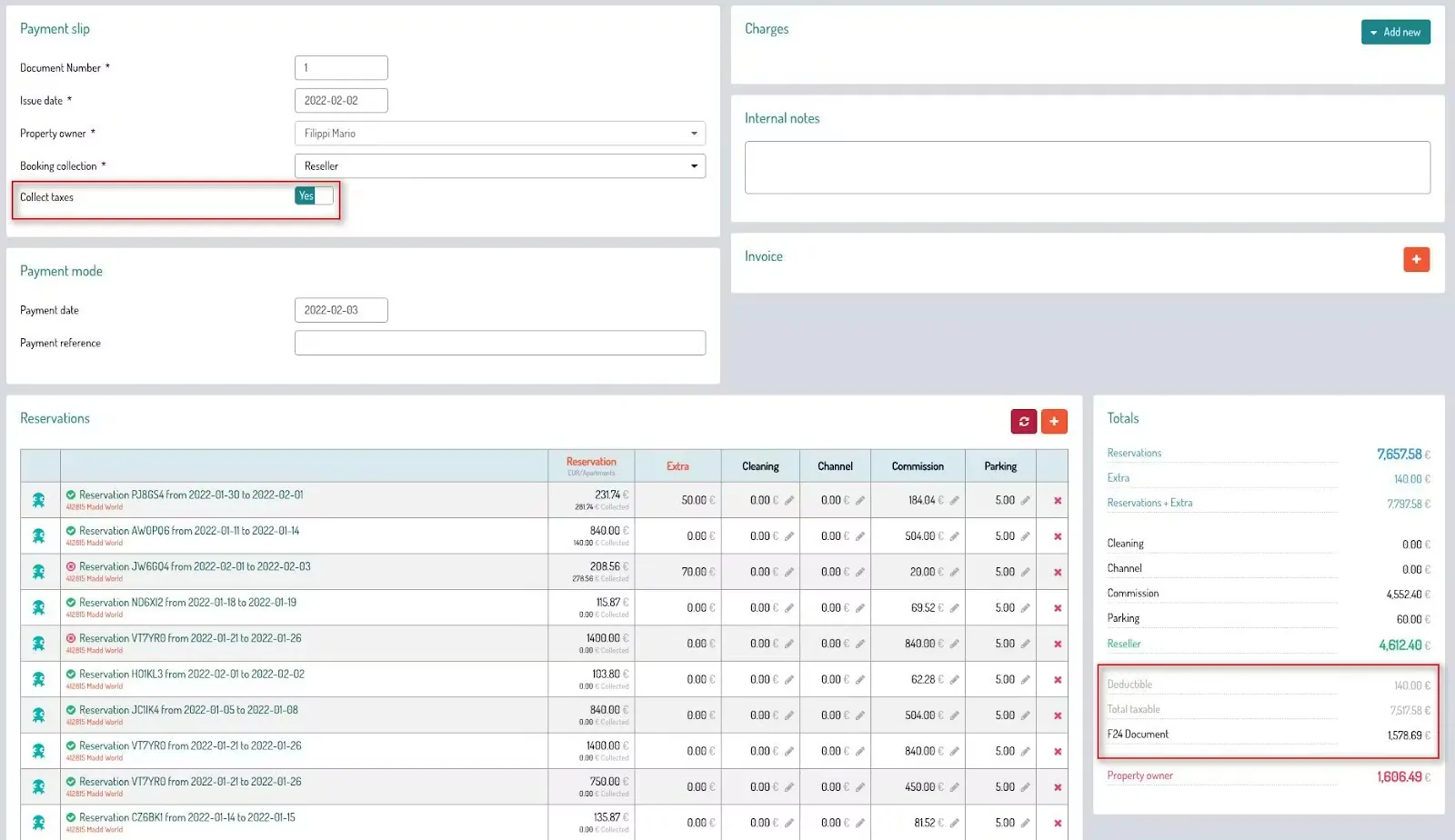
Payment slipOnce you click [Save] at the bottom of the page, the [Print] button will appear.
After clicking [Save], the [Print] button will appear.
You can also choose to issue an invoice at the same time as saving the payment slip.
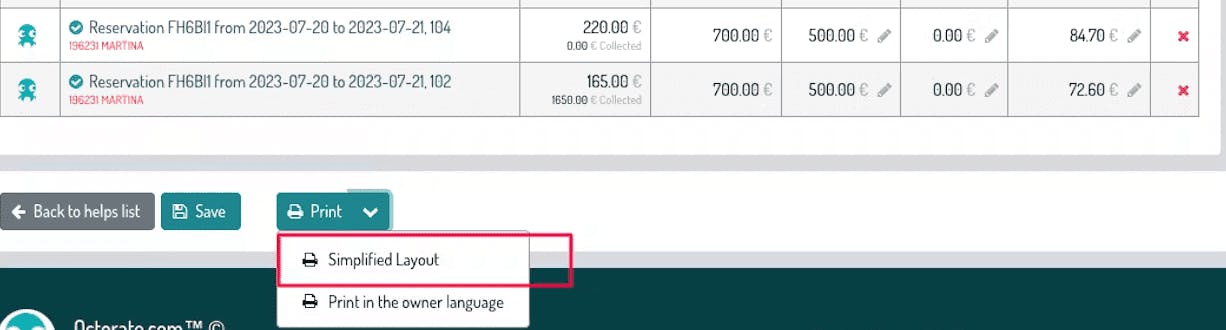
enables you to print a file that only contains the essential information for the owner, meaning their amounts of competence
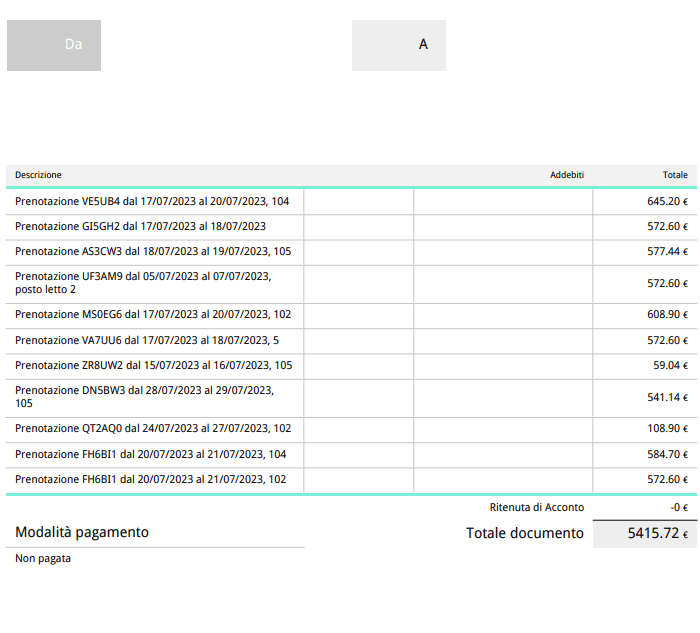
This is the classic layout:
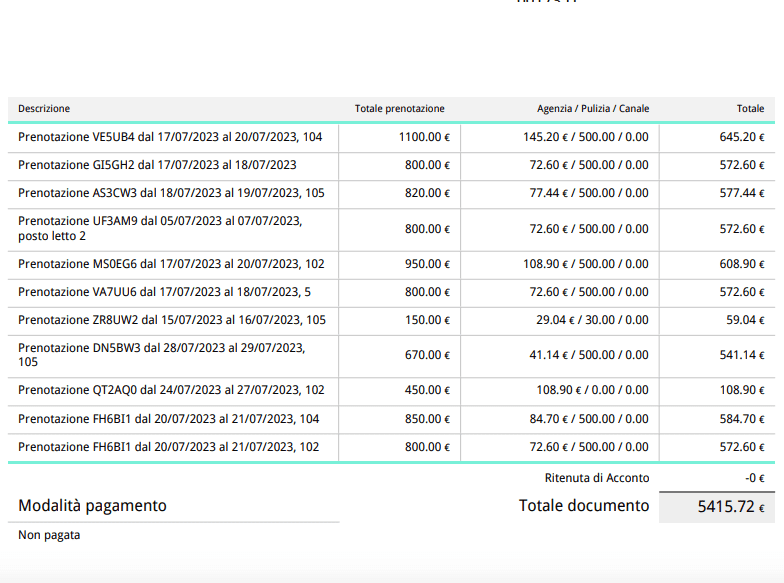
Once you’ve generated your payment statements, you can choose to send them by email to the corresponding owner.
By clicking the ‘Send Email’ button, you can enter a personalized message to send to the owners along with the attached file:
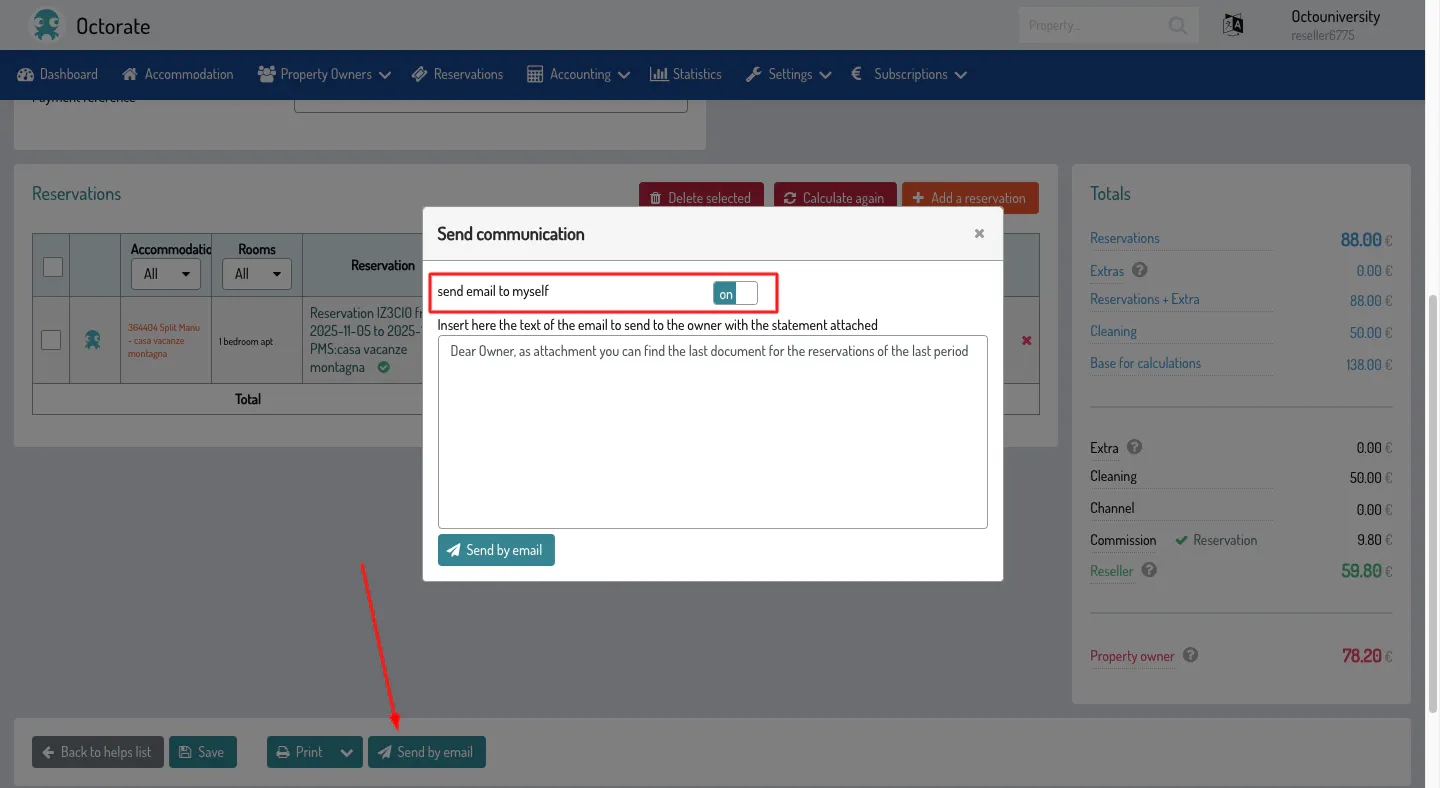
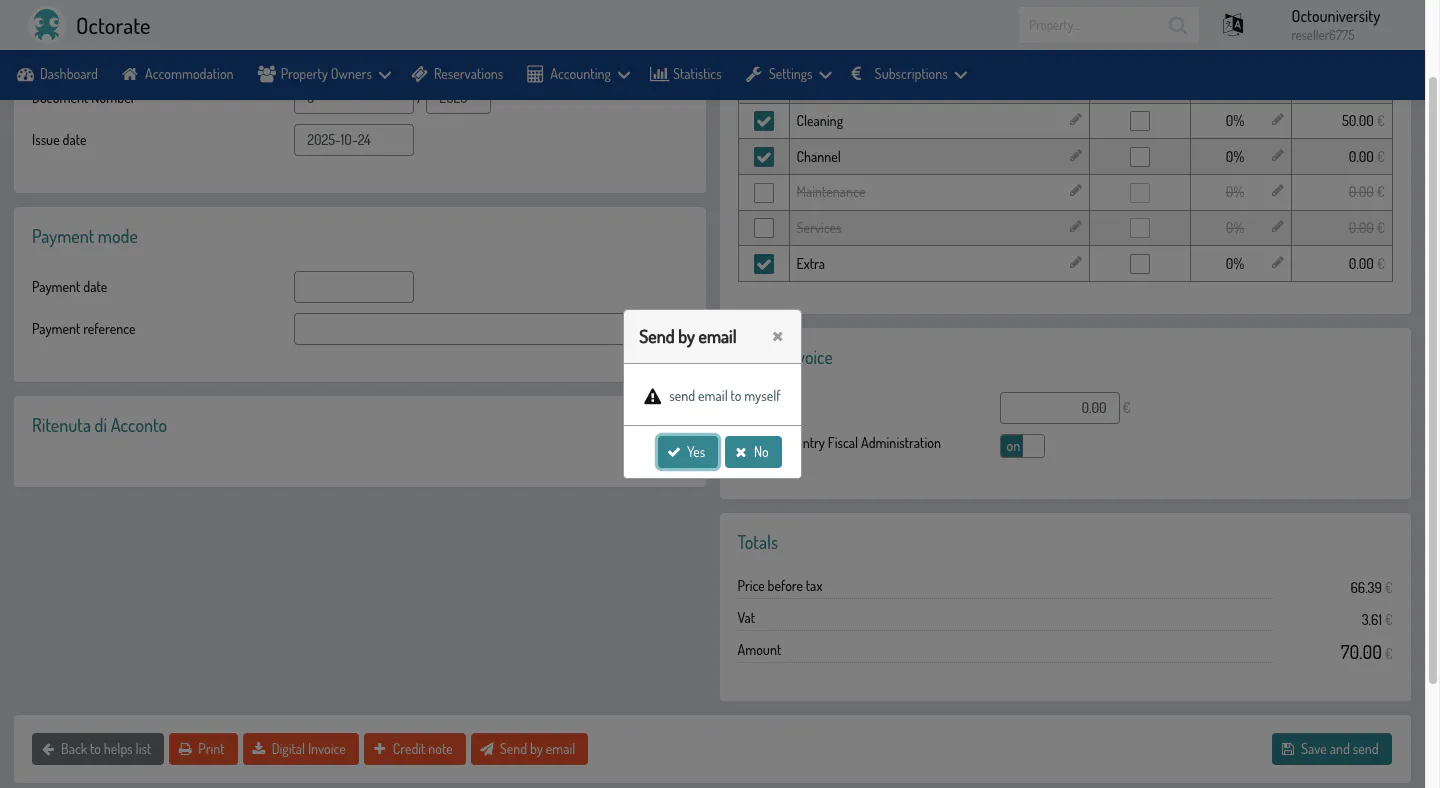
You can also request to have a copy sent directly to you, as the property manager. The same applies to invoices:
---
Furthermore, by accessing this section, you can download the payment stream in XML together with the F24 Document (Italy).

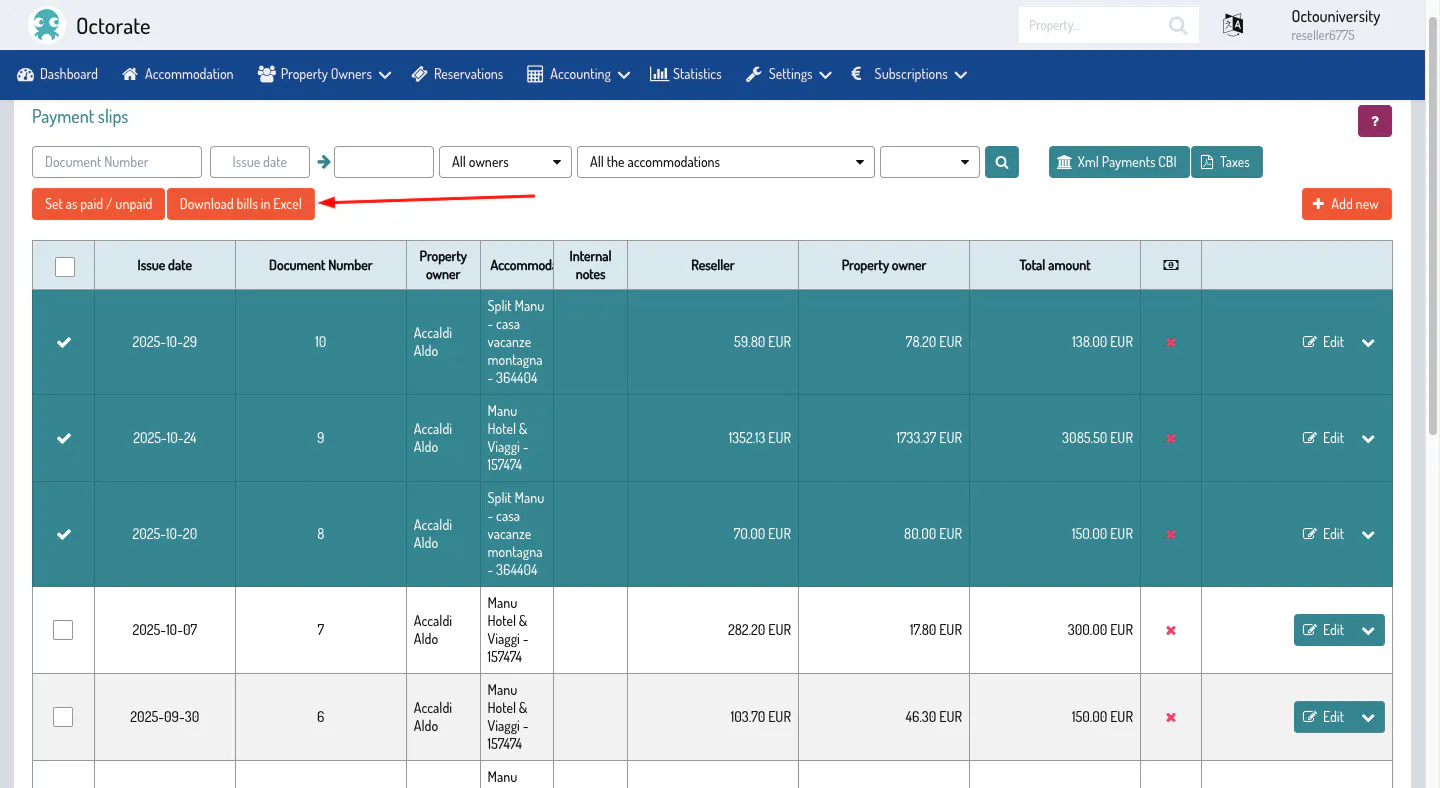
Additionally, you can select the statements and download an Excel file with the data.
---
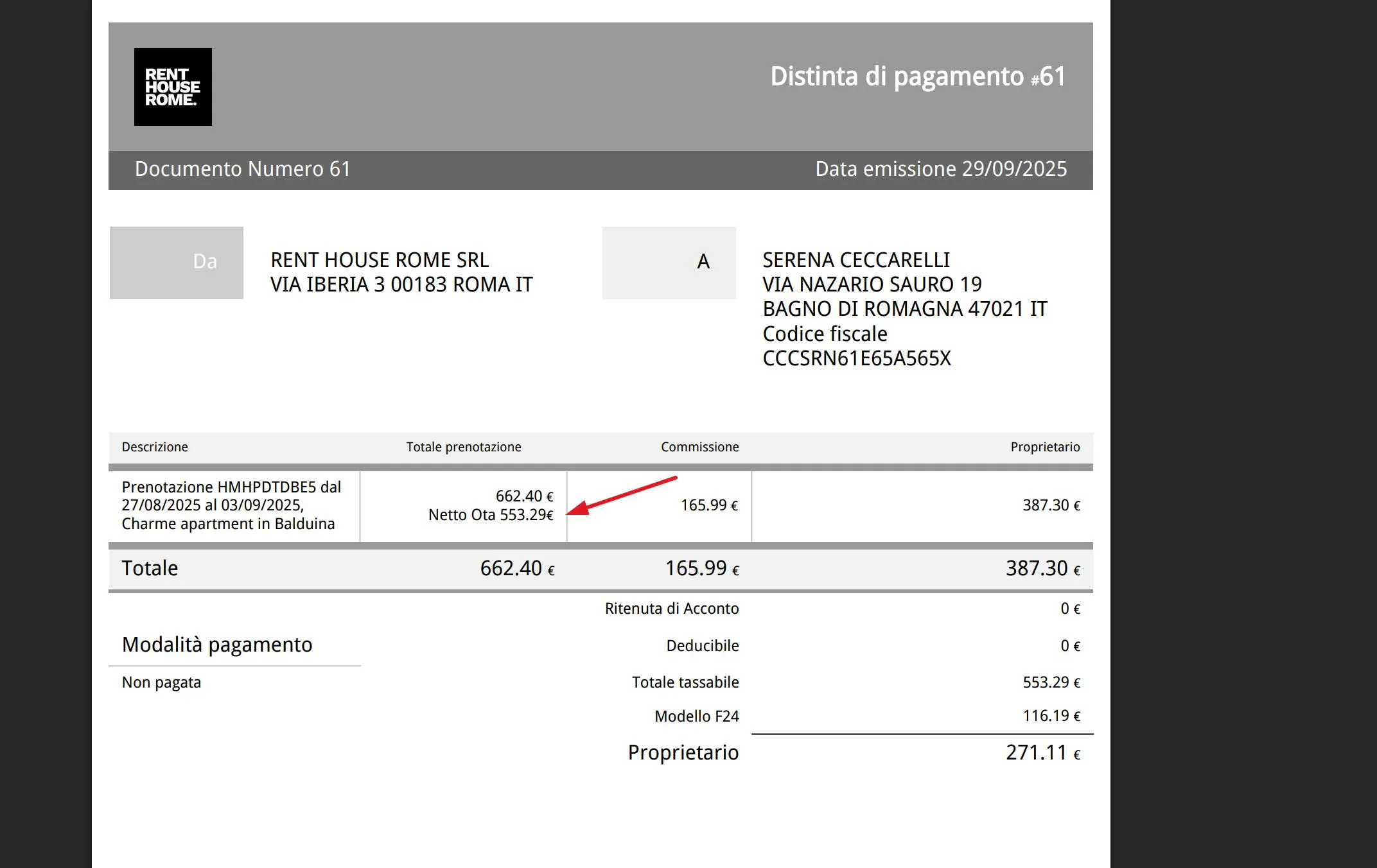
Additionally, if in the commission rules the Add channel commissions option is set to NO:
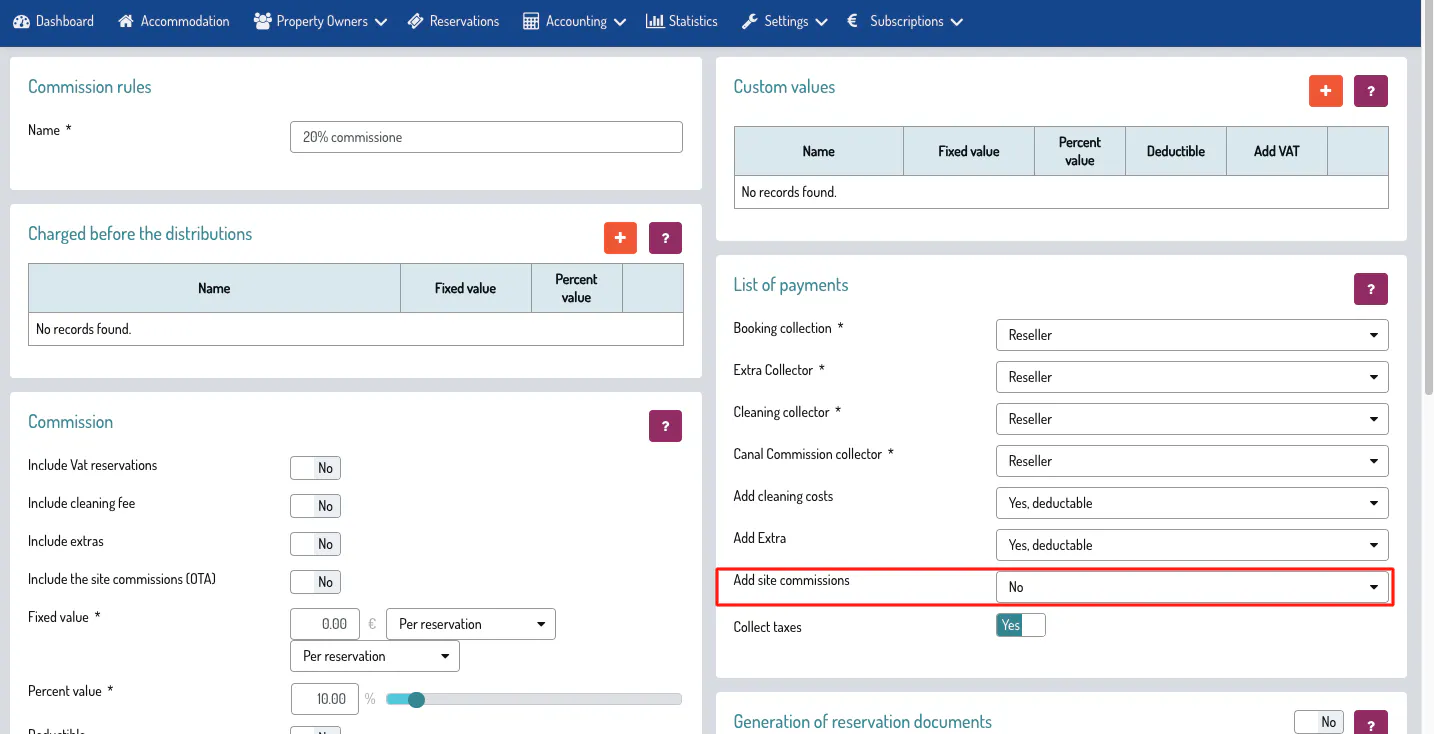
the payment slips for bookings coming from OTAs will also display the net price.
---
An alternative to create a Payment Slips is from the Property Owners > Reservations section. You can select the reservations of your interest and then issue a Payment Slip by clicking on the dedicated button, and following the rules described above.

Click HERE to read the general article.
---
Talk to you soon!
🐙
